Choose your setup
You write a note on your laptop. Later, you want to open it on the computer at home, with its whiteboard and attachments still there. Because Acres keeps that work in a local folder called a vault, a file-sync service can move it between computers.
Start with the storage you already use. The four services below have desktop apps that keep a local folder in step with an online copy.
| Service | A useful fit | Keep the vault on disk |
|---|---|---|
| iCloud Drive | Mac, iPhone and iPad | Keep Downloaded on Mac |
| Google Drive | Mac and Windows, with a Google account | Mirror files, or make the vault available offline |
| Dropbox | Mac and Windows, with an existing Dropbox folder | Make available offline |
| OneDrive | Mac and Windows, especially if you already use Microsoft 365 | Always keep on this device |
Here for your phone or tablet? Go straight to iPhone and iPad. The current app can open an existing vault folder through Open a vault from Files, including iCloud Drive. Other providers need to support whole-folder access through Apple’s Files picker.
These four storage services run on their providers’ servers. If you want to run your own server or keep syncing between your computers, see Nextcloud and Syncthing.
Before you move a vault
Set aside a few minutes for the setup, then allow time for the first upload. A vault with large PDFs will take longer than one containing mostly text.
- Find your current vault. On desktop, open Settings → Vault and click Reveal beside its location. That opens the folder in Finder or File Explorer.
- Let your edits save, then quit Acres. Make a dated backup of the whole vault somewhere outside the folder you are about to sync.
- Copy the whole folder. Keep its existing contents together, including the hidden
.acresfolder. The Markdown cards are only part of the vault; whiteboards, attachments and settings have their own files. - Give the working vault one sync service. Keep it outside any other provider’s synced folders. If it already uses Acres Sync, keep that setup or disconnect it before switching methods. Avoid putting a Dropbox vault inside an iCloud-synced Documents folder, for example.
Use Field notes as the example vault name below, or substitute your own. After copying it into your provider’s folder, open that copy in Acres. Continuing to edit the old folder is an easy way to end up with two different versions.
The steps below use Open folder as vault on the desktop launcher. If Acres opens straight into your last vault, go to Settings → Vault → Open another vault… → Choose folder… to pick the new location instead.
iCloud Drive
A straightforward choice for Mac, iPhone and iPad. Sign in to the same Apple Account on your devices. On Mac, turn on iCloud Drive in System Settings → your name → iCloud → Drive. Depending on your macOS version, the last item may be called iCloud Drive.
- In Finder, open iCloud Drive. Create an
Acresfolder to keep your vaults together. - Copy your closed
Field notesvault into it. The example location isiCloud Drive/Acres/Field notes. - Control-click the vault folder and choose Keep Downloaded. Wait for the first upload to finish.
- In Acres, choose Open folder as vault and select
Field notesinside iCloud Drive. - On the second Mac, wait for the folder to arrive, choose Keep Downloaded there too, and open that folder in Acres.
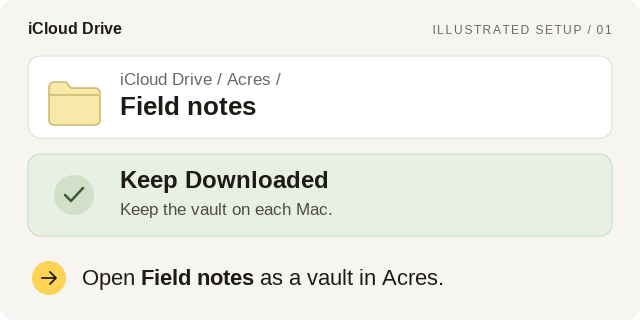
Apple explains the download setting and the status icons. If Finder says it is waiting to upload, let it finish before switching devices. On iPhone or iPad, open this same Field notes folder using the Files steps below.
Google Drive
For Macs and Windows PCs using the same Google account. Install Google Drive for desktop on both computers. Uploading the folder through a browser alone will not give Acres a continuously synced local folder.
- Open Drive for desktop, then Settings → Preferences → Folders from Drive.
- Under My Drive syncing options, choose Mirror files. This keeps My Drive on disk, so check that you have room for the whole drive. If you already stream files, you can instead make the vault folder available offline; keep Drive for desktop running.
- In your local My Drive folder, create
Acresand copy your closedField notesvault into it. - Wait for Drive to finish syncing. In Acres, choose Open folder as vault and select that
Field notesfolder. - Repeat the download setting on the second computer, wait for its copy to finish downloading, then open it in Acres.
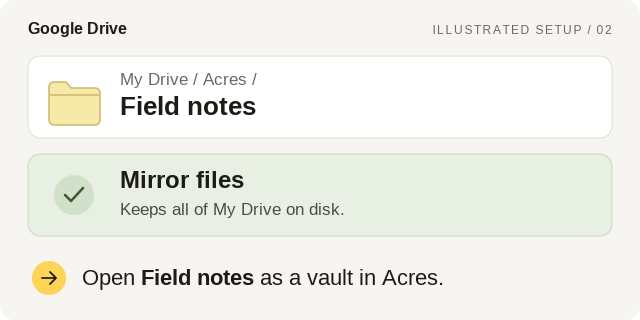
Google’s streaming and mirroring guide explains both modes. If you change modes later, check the vault’s location before reopening it: Drive can move where the local files live.
For iPhone and iPad, check whether the folder can be selected in Files. Google Drive’s mobile app needs to grant access to the whole vault folder for this to work.
Dropbox
For a vault inside your existing Dropbox folder. Install the Dropbox desktop app and sign in on each computer.
- Open Dropbox in Finder or File Explorer. Create an
Acresfolder and copy your closedField notesvault into it. - Right-click the vault folder and choose Make available offline.
- Wait until Dropbox has finished uploading it. On the second computer, let the folder arrive and make it available offline there as well.
- In Acres on each computer, choose Open folder as vault and select its local
Dropbox/Acres/Field notesfolder.
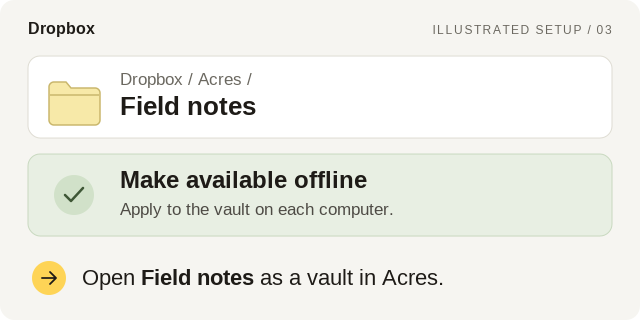
If the folder does not appear, check Dropbox’s selective sync settings: the vault must be included on that computer. Dropbox’s offline access instructions cover both steps. Changes made offline upload when the computer reconnects, so let that happen before editing on your other machine.
On iPhone or iPad, install Dropbox, enable it in Files, then try Open a vault from Files in Acres. The mobile walkthrough explains how to select the vault and check that edits return to the computer.
OneDrive
For a vault in your personal or work OneDrive. Sign in to the same OneDrive account on each computer. If you use both a personal account and a work account, check which folder you are opening.
- In Finder or File Explorer, open the correct OneDrive folder.
- Create an
Acresfolder and copy your closedField notesvault into it. - Right-click the vault and choose Always keep on this device. Wait for the download and upload activity to finish.
- On the second computer, apply the same setting to the vault and wait for all its files to download.
- In Acres on each computer, choose Open folder as vault and select
OneDrive/Acres/Field notes.
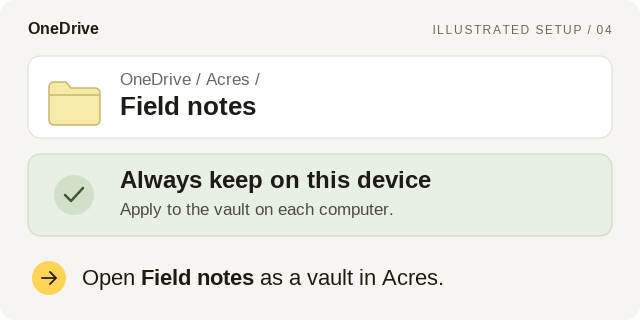
An online-only file can appear in Finder without its contents being on the Mac. Microsoft’s Files On-Demand guide explains the difference. Marking the parent folder to stay on the device also keeps newly added files available.
On iPhone and iPad, OneDrive must expose the whole vault folder to Apple’s folder picker. Check the mobile provider notes before choosing it for a desktop-to-mobile setup.
Check that it works
Do this once before relying on a new setup. It catches a wrong folder or an incomplete download while there is very little at stake.
- On your first computer, create a note called Sync check. Write a short sentence, put the note on a whiteboard and add a small image.
- Let Acres save. Quit the app and wait until your storage provider reports that it has finished syncing.
- On the second computer, or on an iPhone or iPad with the folder connected, wait for its download to finish. Open the vault and check the sentence, the board layout and the image.
- Add a second sentence there. Let Acres save and give the provider time to upload. Open the first computer’s copy and check that the second sentence arrived.
For everyday use, finish on one device and let it sync before starting on the next. Folder sync moves files; it is not a live, shared editing session. Keep dated backups too, since a deletion can travel to every synced copy.
iPhone and iPad
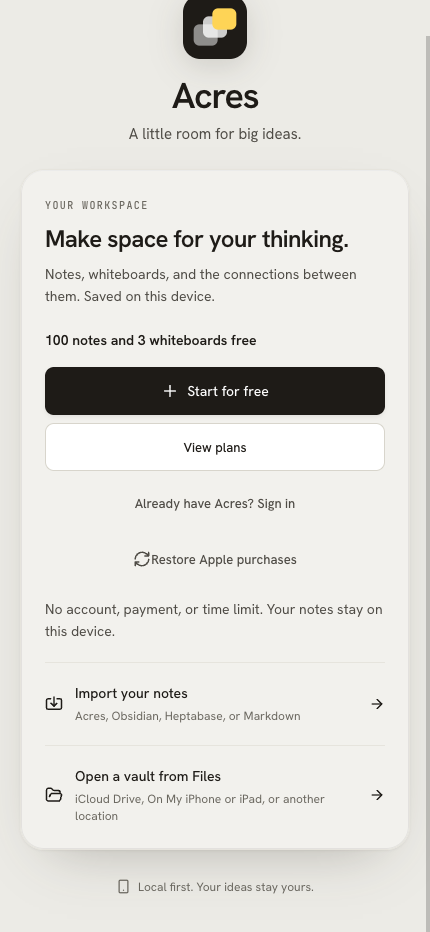
Open the folder where your vault already lives. In the current Acres app, Open a vault from Files connects an existing vault in iCloud Drive, On My iPhone or iPad, or another provider that supports folder access. Edits are saved back into that folder. You do not need to export and re-import a ZIP each time.
Start with an existing Acres vault. If your notes are still in Obsidian or another format, import them into Acres first. The folder-opening control checks that the folder is already an Acres vault. Your free allowance or paid access still applies when you open a folder from Files.
1. Make your storage visible in Files
iCloud Drive appears in Apple’s Files app when it is enabled for your Apple Account. For Google Drive, Dropbox or OneDrive, install the provider’s app and sign in first. Then open Files → Browse → More (…) → Edit, enable the provider and tap Done. Apple’s Files setup guide shows the current screens.
For iCloud, look for iCloud Drive → Acres → Field notes, matching the example desktop setup above. Open that folder in Files and give its contents time to download. A folder under On My iPhone or On My iPad is local to that device; putting a vault there does not itself sync it anywhere.
2. Open the vault in Acres
- On your computer, let Acres save and let the provider finish uploading the vault.
- Open the Acres launcher. If you are already in a vault on iPhone, go back to the Whiteboards screen and choose More (…) → Settings → Switch vault. On iPad, open Settings from the sidebar, then choose Switch vault.
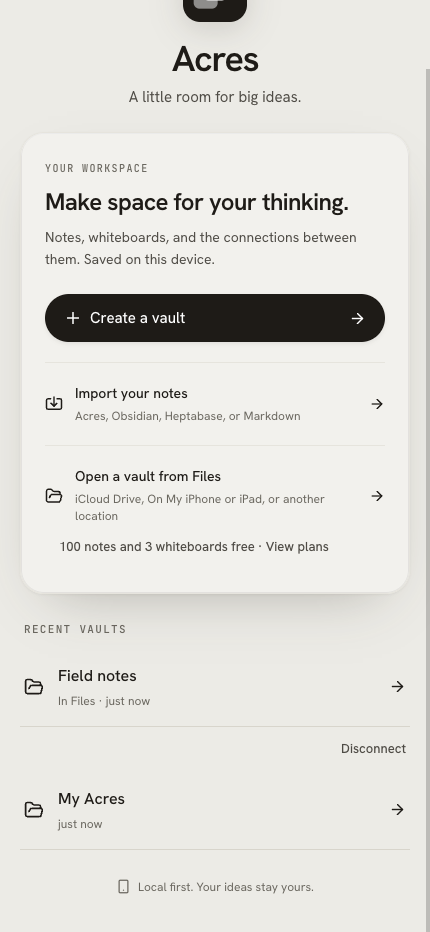
- Tap Open a vault from Files. Scroll down the launcher if the button is below the welcome options.
- In the system picker, browse to your provider and select the vault folder itself:
Field notesin this example. Choose the folder containing your cards and boards, rather than an individual note, a ZIP, or the parentAcresfolder. Confirm the folder selection. - Wait while Acres checks the vault and requests any missing iCloud notes. Keep the device connected if a download message appears.
- When the vault opens, check a familiar note, a whiteboard and an attachment. Add a short test sentence, let it save, and check that sentence on your computer after the provider has synced.
The folder now appears under Recent vaults with In Files beside it. Use that entry next time. Acres remembers the folder connection, so you do not have to choose it again on every launch.
3. Let the provider carry your edits
Acres saves into the selected folder; iCloud Drive or the other provider moves those files between devices. Before switching devices, let your notes save and give the provider time to upload. When you return to Acres, it refreshes the connected folder. Photos and PDFs may still need time to arrive even after the notes have opened.
To remove a folder from Acres, leave the vault through Switch vault, then tap Disconnect under its entry. This removes Acres’ connection to the folder. The folder and its files stay in Files.
Other providers on iPhone and iPad
iCloud Drive is the simplest starting point for an Apple-device setup. Dropbox, Google Drive, OneDrive and other Files locations depend on the provider’s implementation: Acres needs permission to read and write an entire folder, not just open one document.
After enabling the provider in Files, try selecting the vault through Open a vault from Files. If its folder is disabled or cannot be selected, that provider is not offering the access this workflow needs. Updating the provider’s app is worth checking, but downloading individual notes does not add folder support. Use iCloud Drive for the working vault, Acres Sync, or the ZIP option below.
When a ZIP is still useful
A ZIP works for backups and one-time transfers, including when a provider cannot grant folder access. Compress the whole closed vault folder on Mac or Windows, keep .acres included, and upload the ZIP. In the Acres launcher, choose Import your notes → Acres vault backup (.zip) → Choose file.
That import creates a separate local vault. To send later changes back, use Settings → Export vault backup, save the new ZIP to Files and extract it into a separate folder on your computer. Keep one working copy during a manual handoff: importing another ZIP does not merge two independently edited vaults.
Self-hosted options
If you already run your own storage, you can use the same local-folder approach on desktop. Acres does not connect directly to a WebDAV address or a Syncthing device; the sync client supplies the folder it opens.
Nextcloud: a server you control
With a working Nextcloud server, install its desktop client on both computers. Sign in to your server, choose a local sync folder and include an Acres/Field notes folder in the files it syncs. Keep the vault fully downloaded, then open that local folder in Acres on each computer. Run the two-way check above.
Nextcloud’s desktop setup guide covers the server login and folder selection. This assumes your server is already running; installing and maintaining the server is a separate job.
Syncthing: directly between computers
Install Syncthing on both computers, pair the devices and share the vault folder with Send & Receive enabled. On the receiving computer, choose an empty destination and wait for the initial transfer before opening it in Acres. Both devices need to be online at the same time for a direct transfer; an always-on third device can hold a copy when your computers are rarely online together.
Follow Syncthing’s getting-started guide, then run the same two-way check. Keep this vault outside any other live sync folder.
For mobile, the same requirement applies: the folder must be available through a Files provider that permits whole-folder access. A Nextcloud iOS location or a separate sync client should be checked in the folder picker before you rely on it. Installing Syncthing on your computer alone does not connect an iPhone or iPad vault.
If something looks wrong
A note appears, but its image or whiteboard is missing
Wait for the whole vault to finish downloading. Open the image or PDF from Finder or File Explorer to check that its contents are local. Confirm you copied the complete vault rather than just its Markdown files.
Changes stay on one computer
Check Settings → Vault → Location on both computers. One may still be opening the original, unsynced folder. Then check the provider’s app for a paused transfer, a signed-out account, full storage or a folder excluded from sync.
You see duplicate or conflicting files
Stop editing on both devices and preserve a separate copy of each vault. Compare the affected notes before discarding either version. For a board conflict, keep both files while you decide which layout to recover. Once the vault is consistent again, let one device finish syncing before editing on the next.
A folder cannot be selected on mobile
Confirm you tapped Open a vault from Files, not Import your notes. Check that the provider is enabled in Files and that its app is signed in. If individual files appear but the folder is disabled, use the provider alternatives above.
Acres says the folder is not a vault or is still downloading
Choose the folder directly containing the Acres cards and boards. Selecting the parent Acres folder is one level too high. If notes are still downloading from iCloud, keep the device online, let the download finish and try again. An unavailable recent vault can also mean the folder moved or the provider signed out.
If Open a vault from Files is missing altogether, check that you are using an Acres app version that includes folder opening. The browser preview is not the installed iPhone or iPad app.
A ZIP import fails
Choose an Acres vault ZIP, not a single board or a ZIP of unrelated Markdown files. A newer vault format may require an Acres update. Mobile imports also have size and file-count limits; the app reports when a backup exceeds them. A large library of PDFs may need a smaller vault for transfer. If the device’s free note or whiteboard allowance is the issue, follow the import message before retrying.
The cloud ZIP has not changed after editing on iPad
You edited the imported local copy. Use Export vault backup to make a fresh ZIP. For ongoing folder sync, put the extracted vault in a supported Files location and use Open a vault from Files instead.
Why the app matters
The same storage service can behave differently in two Markdown apps. Obsidian’s guide separates sync methods by platform. iA Writer’s guide distinguishes opening individual files from connecting whole folders on iOS. Joplin connects to Nextcloud through its own sync settings.
This guide follows Acres’ current controls and the storage providers’ documentation. The illustrations show folder locations and settings; they are not screenshots of the providers’ apps. When you set up a new combination of devices, the small round-trip test is the part that confirms it works for your vault.