Download with Direct Link: Step-by-Step Fixes That Work
Learn how to download with direct link in any browser, read status codes, fix blocked or stalled files, and verify what you saved.
You clicked Download, the bar filled in two seconds, and the file that landed in your folder is 4 KB. Open it and you get a line of text, a login form, or nothing at all. Or the progress bar stopped at 94% an hour ago and hasn't moved since.
I've spent years on the support side of these tickets. The same truth holds every time: a direct link is a promise about a file. It promises a specific file, at a known size, in a known format, from a server that will hand it over when asked. When a download fails, one of those promises broke, and you can usually tell which one without changing browsers.
The repair is a sequence, not a guess. Check what the link claims before you click. Read the server's response. Verify what landed on disk. Each pass is cheap, and each one narrows the problem.
Table of Contents
- How to Recognize a Direct Link Before You Click
- Four Steps to Download a File from a Direct Link
- HTTP Status Codes That Explain a Failed Download
- Fix Downloads That Open a Page Instead of Saving
- Handle Expired, Login-Protected and Interrupted Links
- Verify and Keep Your Download Before You Move On
How to Recognize a Direct Link Before You Click
A download fails at the cheapest possible moment to catch it, which is before the click. The address and the surrounding text carry most of what you need to know about what you're about to get.
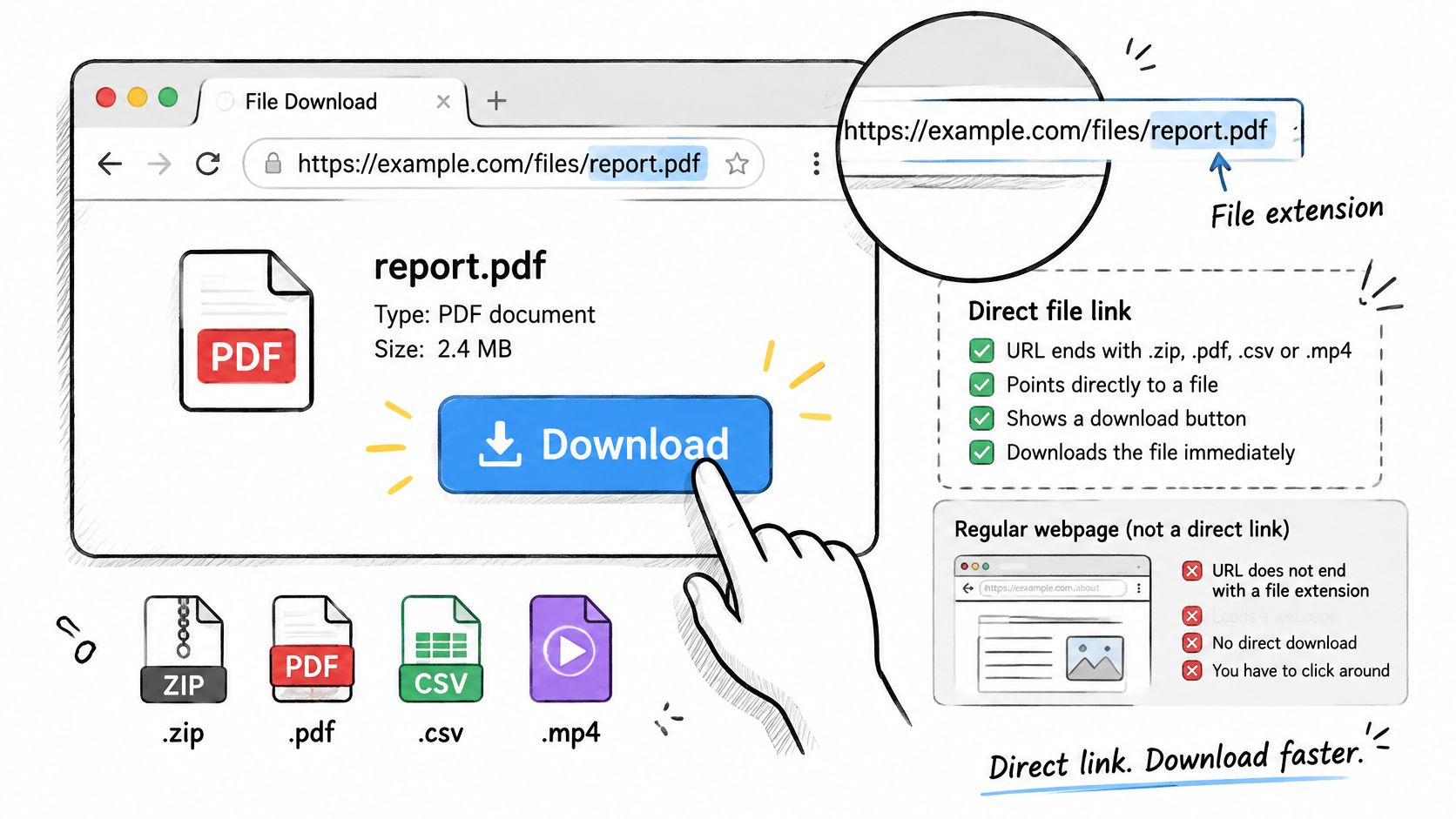
Read the address first. A file link usually ends in an extension such as .zip, .pdf, .csv, .mp4, .dmg or .exe. If the address ends in a page name with no file path and no extension, you're on a landing page that will hand you the file secondhand, and the file URL is somewhere behind it. A short query string is normal: ?id=4821 tells you nothing alarming. Long signature parameters with an expiry value tell you the link is temporary and may already be dead by the time you paste it into another device.
This is what the difference looks like in practice.
Read the label second. Texas Tech University's digital accessibility guidance on links recommends putting the file format and size directly into the link text, because screen-reader users and people on metered or slow connections need that information before they commit to a download. "Download the 2026 dataset (CSV, 38 MB)" is a usable label. "Click here" is not. When a file is generated on request and the final size isn't known yet, a label that says so, such as "CSV, roughly 30 to 40 MB", still beats silence.
Then run four checks in ten seconds.
- Secure transport: the address starts with https. Plain http still downloads, but anything between you and the server can swap the file in transit.
- Domain match: the file sits on the same domain as the page, or on a storage domain the page names openly.
- Sign-in state: the page tells you a login is required before you click, not after you get a 401.
- Software needed: a .7z archive or a .dmg installer on a Windows machine is a mismatch you can spot in advance rather than after the download completes.
Three questions cover almost every link. What file is this, how big is it, and what do I need to open it?
If the page answers all three, click with confidence. If it answers none, expect a surprise after the click, and check the size before you trust whatever arrives.
Four Steps to Download a File from a Direct Link
The link checks out, the size is listed and the cursor is hovering. What happens in the next ten seconds decides whether a file lands on disk or just opens in a tab, and it comes down to four steps that work the same way in every current browser.
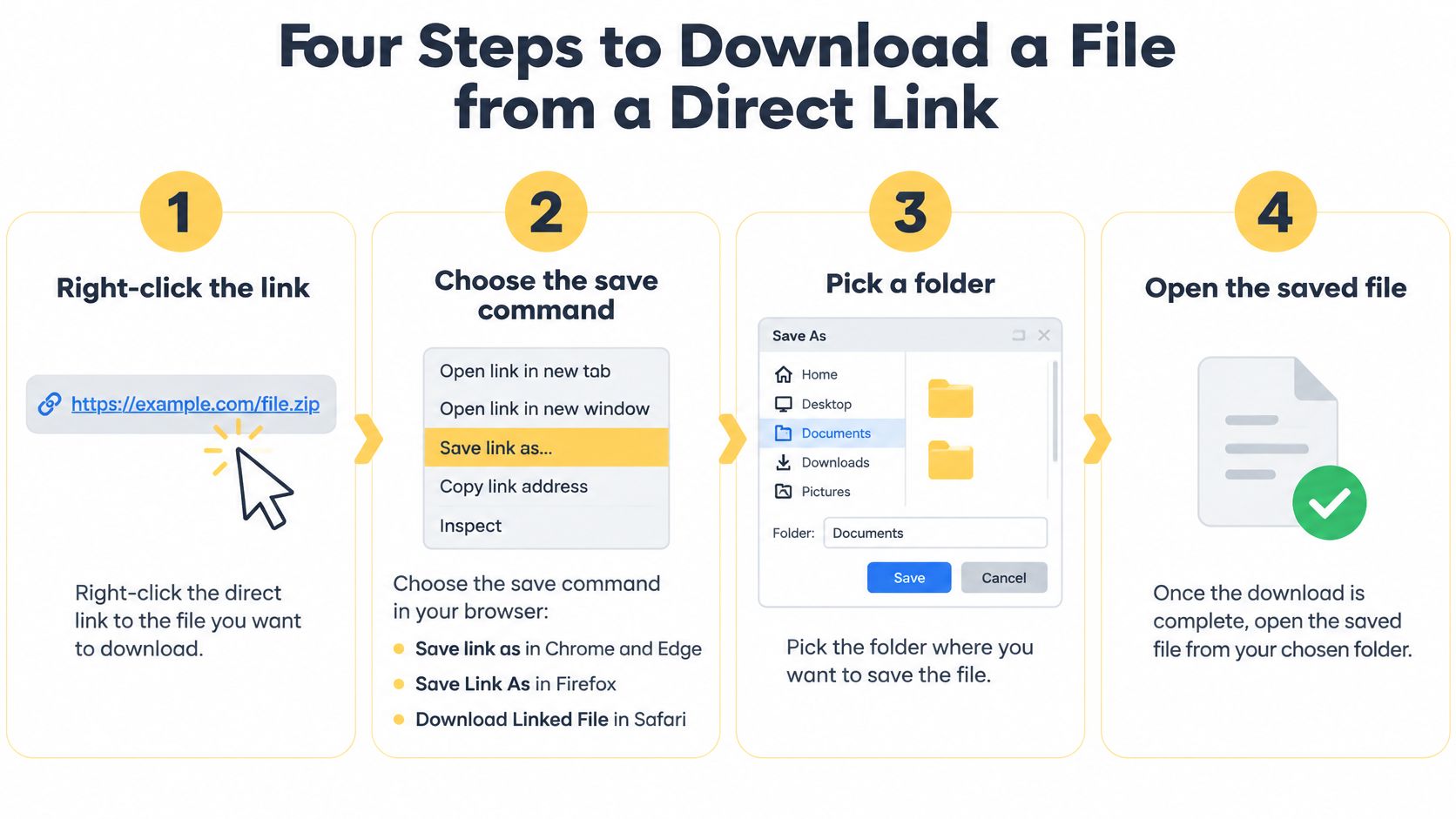
Right-click the link and choose the save command. Chrome and Edge call it Save link as, Firefox says Save Link As, and Safari says Download Linked File. This is the step that gets skipped most, and it matters most. A left-click hands the file to whichever viewer the browser registered for that type, which is why a PDF opens in a tab and an image becomes a page. Right-clicking puts the bytes on disk.
Pick a folder and rename while you are in the dialog. Server-supplied names are often useless: file.bin, download, export(3). Give it a name you will recognise in six months, such as survey-2024-raw.csv, and keep the extension matching the format. The extension decides which program opens the file later.
Watch the size while it transfers. Keep the browser's download panel open and compare the running total with the size the source page listed. A 480 MB file on a 50 Mbps connection needs roughly 80 seconds of transfer time, so a download that reports complete in two seconds did not deliver 480 MB. The arithmetic settles it before you ever open the file.
Open the saved file once, outside the browser. Double-click it from the folder and confirm it loads in the application you will use. A file that opens cleanly has passed the last check. A file that stalls or throws an error is telling you the transfer failed, whatever the browser claimed.
Some files have no savable address at all. When a video plays inside Instagram's player, the page never exposes an .mp4 path, so there is nothing to right-click. The reliable routes are the platform's own save or offline option where one exists, or asking the creator for the original file. Outside tools do exist for that gap, and an Unfollowers Track Reels saving tool is one example, but capturing a stream through an outside tool can breach the platform's terms and the creator's copyright. Check what the platform permits before you reach for one.
If you'd rather watch the click-by-click before trying it yourself, this walkthrough runs through the same four steps in a desktop browser.
The check at the end is simple: the file is on disk, its size matches the listing, and it opens in an application rather than a tab. When all three hold, the link kept its promise.
HTTP Status Codes That Explain a Failed Download
Every direct link runs on one exchange. Your browser sends a GET request for the address, and the server replies with a status line, a set of headers and, when things go well, the file itself as the response body. That model is old and stable: HTTP/1.1 was standardized in RFC 2068 in January 1997, and MDN's HTTP status code reference still documents a 200 response to a GET as the case where the requested resource was fetched and transmitted in the response body. A direct link is that exchange with no peer-to-peer layer and no special client.
Two codes look like success and aren't. 202 Accepted means the server took the job and processing hasn't finished, so no file has arrived yet. 204 No Content means the request succeeded and there's no representation to return. Neither produces an error message, and both leave you clicking a button that appears to do nothing.
Seeing the code takes ten seconds. Open developer tools, switch to the Network tab, click the download and read the Status column. From a terminal, curl -I followed by the file address prints the response line and headers without pulling the file. If you want that same view without dev tools open, SiteAlive's live HTTP header viewer shows a server's response for any address.
| Code | Name | What It Means | What to Do |
|---|---|---|---|
| 200 | OK | File sent in the response body | Save it, then check the size |
| 202 | Accepted | Processing not finished, no file yet | Wait, then request the link again |
| 204 | No Content | Success with no body | Look on the page for a real download link |
| 206 | Partial Content | Range request accepted, remaining bytes sent | Let the download continue |
| 416 | Range Not Satisfiable | Resume offset past the end of the file | Restart the download from zero |
Redirects and refusals need different actions. A 301 or 302 means the file moved, so follow the redirect and confirm what the final address delivers. A 401 means you aren't signed in; authenticate on the source site and click again. A 403 means you're signed in and not permitted, which is a permissions question for whoever owns the file, not a browser setting. A 404 means the file is gone from that path, so return to the source page and request a fresh link.
The case that fools everyone: a 200 with a 3 KB body. The code is correct, the file is wrong. Check the size before you blame the link.
Fix Downloads That Open a Page Instead of Saving
Most of these tickets aren't broken links at all. They're links that worked and put the file somewhere the reader didn't look, or delivered something other than the file.
The table below runs from the symptom you'll meet most often to the one you'll meet rarely.
| Symptom | Likely Cause | Fix |
|---|---|---|
| Link opens a preview tab | Viewer handles PDFs and images | Right-click and choose the save command |
| Saved file is 0 KB or a few KB | Server sent an error page with a success code | Open in a text editor, look for "Not found" or a login form, then request the link again |
| Download blocked with no prompt | Site lacks download permission or pop-ups are blocked | Allow downloads and pop-ups for that site |
| Antivirus quarantines the installer | Unknown or unsigned executable | Compare the file's SHA-256 with the value published on the source page, and run it only from the official source |
| Saved as download.php or with no extension | Server sent no usable filename | Rename it and match the extension to the file type |
| Saved HTML instead of PDF | Link leads to a landing page | Find the direct file URL on that page |
The quarantine case deserves a warning rather than a workaround. Overriding antivirus or SmartScreen to install a file you can't verify trades a nuisance for a real risk. OWASP's application security verification standard makes the point on the server side: a Content-Disposition: attachment header "reduces browser interpretation risk, but it does not replace access control, type validation, malware scanning, or safe storage". The same logic applies on your side of the wire. Get the checksum from the official page or don't run the file.
Filenames tell you something too. A saved file called download.php?id=4821, or one with no extension at all, means the server never sent a usable name, and the bytes inside may or may not match the extension you add. The failure that produces this on the server side is trusting user-supplied path components and reflecting them back into the name. Rename the file, match the extension to the actual content, and treat any upload that arrives as HTML or JavaScript as something to open only in a throwaway folder, never in the origin you use for real work.
If the PDF did land on disk and you want to annotate rather than just read it, the reader-side tools are covered in this guide to highlighting a PDF on Mac.
Fix the link first, then the browser settings. A permission change can't repair a server that never had the file.
Handle Expired, Login-Protected and Interrupted Links
Three failures account for most of the tickets that survive a first round of fixes. Each one breaks a different part of the promise a direct link makes, so each has its own repair, and they are worth telling apart before you touch anything.
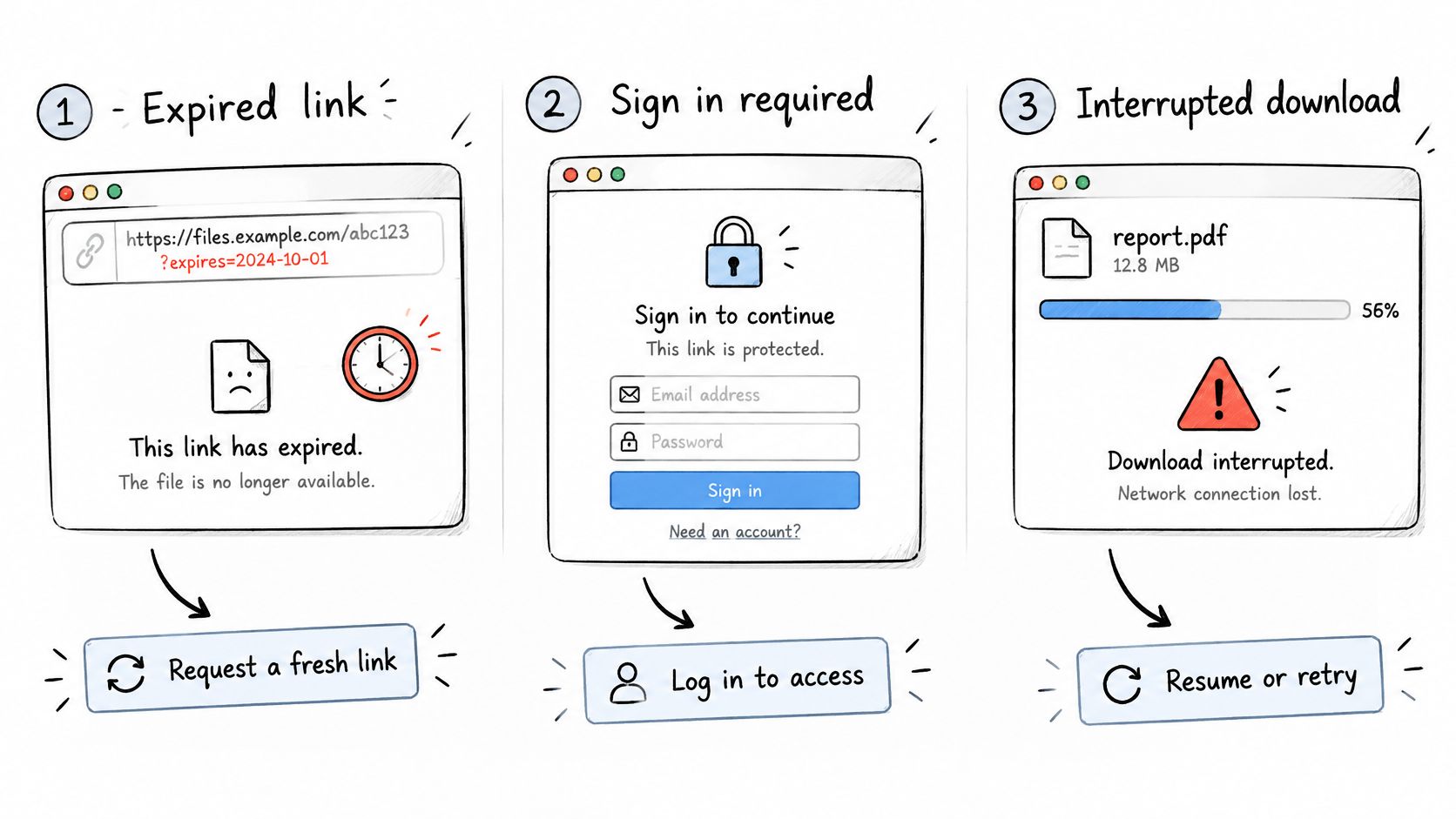
Expired links. Many hosts issue temporary addresses with an expiry baked into the signature, and the address stops working the moment that value passes, whether or not you were mid-transfer. No host guarantees how long a file stays reachable, and there is no dependable average to plan around. Treat an old link as a stale claim about the file. When it fails, go back to the source page and generate a fresh one instead of retrying the dead address.
Login-protected links. Sign in on the source site in the same browser and the same profile before you click. Pasting a protected address into a private window, or sending it to another device, drops the session cookie, and the server answers 401 or 403 even though the link itself is fine. The link promised a file, but the promise was conditional on your session, and the status code is the server saying so. When the block comes from the platform rather than the file, the RenderIO breakdown of video access blocks covers the patterns sites use to gate media.
Interrupted downloads. This failure has an exact repair, and the response tells you whether it worked. MDN's HTTP headers reference lays out the sequence: the server advertises Accept-Ranges: bytes, the client asks for the remainder with Range: bytes=<offset>- and sends If-Range with the validator it stored, such as an ETag, and a successful partial response arrives as 206 Partial Content with a matching Content-Range. The client then appends the new bytes.
Read the status line before you touch the file:
- 206 Partial Content: the resume worked. Append and keep going.
- 200 OK to a range request: the server ignored the range. Throw away the partial file and restart from zero.
- 416 Range Not Satisfiable: the offset is past the end of the file, usually because the file changed or your partial is bigger than the original. Restart.
Before you resume: confirm the fresh link lists the same file type and size as the original listing. Appending bytes from a changed file corrupts it silently, with no error at all.
From a terminal, curl -C - -O followed by the URL resumes, and wget -c followed by the URL does the same. Keep the partial file until the transfer completes. A resume stitches bytes together; it checks nothing about them.
Verify and Keep Your Download Before You Move On
Verification starts on the source page, not in your Downloads folder. Copy the listed size and any published SHA-256 checksum before you click, because once the page changes you have nothing to compare against.
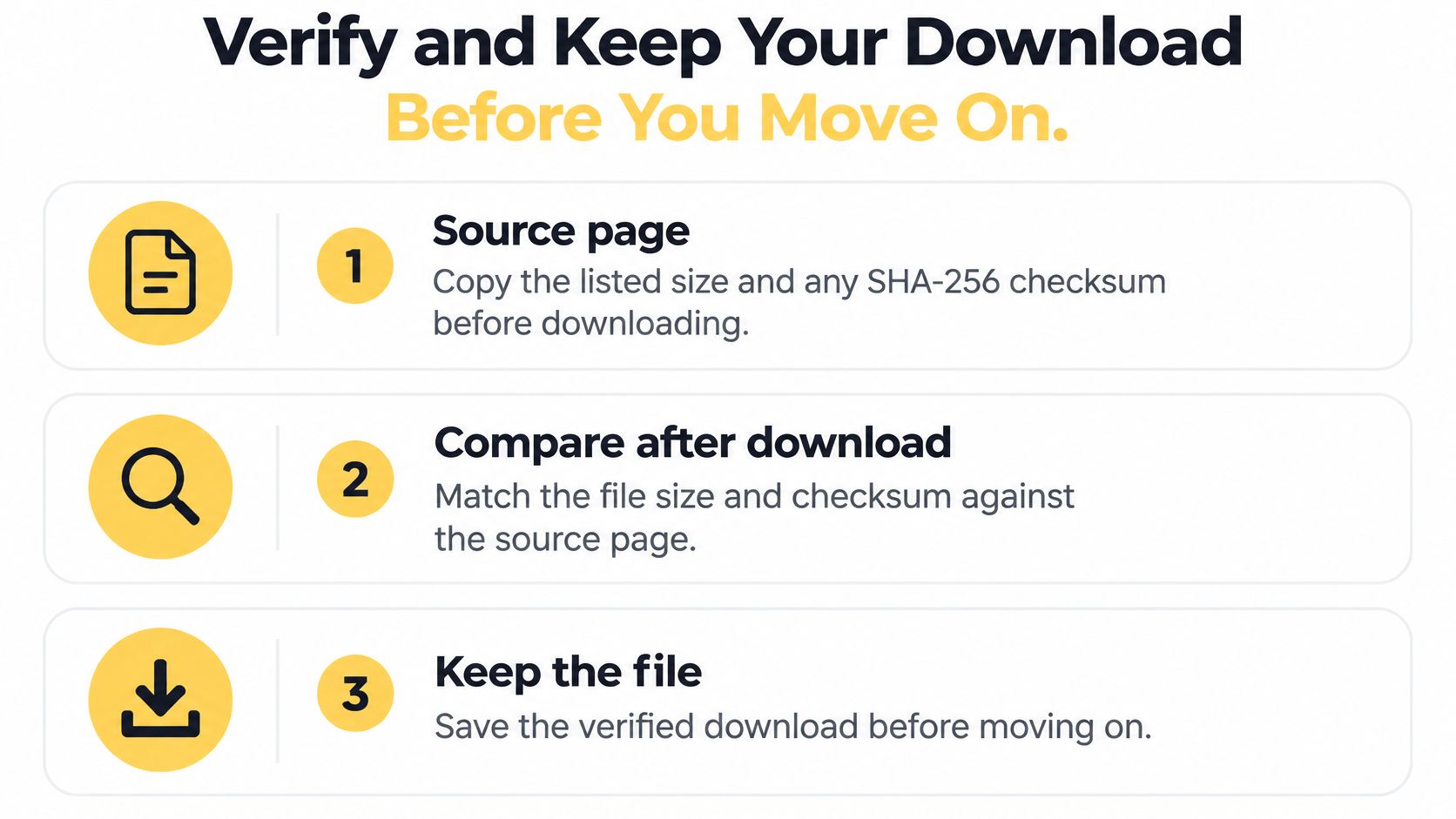
Three checks, in this order:
- Size on disk. Compare the file's size with the listing. A mismatch means an incomplete transfer or an error page saved under a .zip name.
- Checksum. Compute the SHA-256 and compare it with the published value, character for character.
- Open test. Launch the file in the program you plan to use, not only in the browser's viewer.
| Platform | Command | Compare Against |
|---|---|---|
| macOS or Linux | shasum -a 256 survey-2024-raw.csv on macOS, sha256sum survey-2024-raw.csv on Linux |
The SHA-256 string published on the source page |
| Windows | certutil -hashfile survey-2024-raw.csv SHA256, or Get-FileHash in PowerShell |
The same published string, character for character |
Then keep a record, because a direct link is a fragile reference rather than a permanent one. A 2025 study of link rot in library and information science literature, published in the Journal of the Association for Information Science and Technology, reports that accessibility of web citations falls from 87% for links aged 0 to 5 years to 38% for links older than 10 years, while permanent link rot rose from 5% in 2012 to 15% in 2025, with PDFs holding up better than database-driven content.
Write five things beside the file: the source page URL, the direct link you used, the download date, the file size and the checksum. Note whether the address is a stable file URL ending in the file's own name or a signed link with an expiry, since a signed link will stop working and may later serve a different version. If you collect files into notes, taking notes on a PDF is worth setting up in the same folder so the record travels with the document instead of living in a browser history you'll clear. Check the size, compare the checksum, run the open test, and write the record before you leave the page.
Acres is a local-first workspace built for exactly this end of the job: PDFs and images stay in folders you control, highlights become cards linked back to their source, and every note is plain Markdown you can open with any tool. The desktop trial runs 14 days with no account and no payment details, and after it ends everything still opens, searches, reads and exports, so nothing you collected becomes unreachable. Start at Acres and keep the verified file and its record in the same place.